check The Latest Price Here Ad
Asus Zenbook Pro Duo 15 Oled Display Features
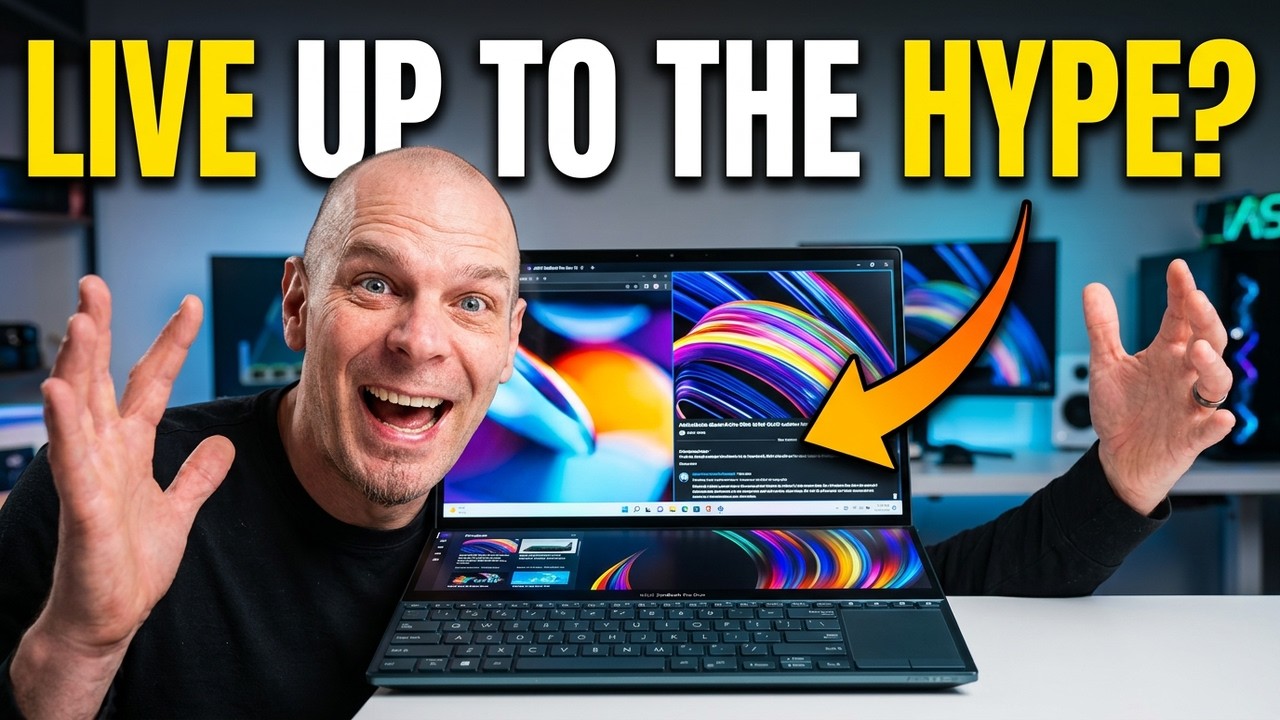
The ASUS ZenBook Pro Duo 15 OLED introduces an innovative dual-display setup that significantly enhances user productivity and multitasking capabilities. At the core of its display features are two touch-enabled screens that work seamlessly together, creating a unique computing experience.
Main Display : 15.6-inch 4k Uhd Oled Touchscreen
The primary screen on the ZenBook Pro Duo 15 OLED is a 15. 6-inch 4K UHD touchscreen. This display offers exceptional clarity and color accuracy, making it ideal for creative professionals, content creators, and anyone who values vibrant visuals. The OLED technology ensures deep blacks and vivid colors, elevating the viewing experience beyond traditional LCD screens.
As a touch display, the main screen supports intuitive interactions. Users can tap, swipe, and pinch to zoom directly on the display, allowing for a natural and fluid user interface. This feature is particularly beneficial for creative tasks such as drawing, photo editing, and design work where precision and touch input matter.
Secondary Display : Screenpad Plus
One of the standout features of this laptop is the secondary touchscreen, branded as the “ScreenPad Plus. ” Positioned directly above the keyboard, this screen is a full-fledged touch display that acts as a versatile extension of the main screen.
Unlike traditional laptops with only one screen, the ZenBook Pro Duo 15 OLED offers two independent touchscreens, both fully operational and responsive.
The ScreenPad Plus allows users to multitask more efficiently by providing additional screen real estate for reference materials, toolbars, or secondary applications. For example, while working on the main screen, users can keep Excel spreadsheets, chat windows, or web browsers open on the secondary display.
This dual-display setup eliminates the need for external monitors and simplifies workflows.
Interactivity And Productivity Enhancements
ASUS has integrated several user-friendly features to maximize the synergy between the two displays :
Touchscreen Functionality on Both Displays :
Both the main and secondary screens support touch input, enabling users to interact with any part of the laptop intuitively.Screen Toggle Button :
There is a dedicated button that allows users to turn off the secondary display when not needed, helping conserve battery life. This is particularly useful when using the laptop like a conventional device to extend usage time.Window Management and Movement :
The operating system and ASUS’s custom software allow users to drag windows seamlessly between the two screens. This includes snapping windows to full screen on either display or arranging them in customizable layouts on the secondary screen.Advanced Window Tiling :
Within the ScreenPad Plus, users can organize windows into sections such as right two-thirds or left third of the display. This feature lets users flick through multiple applications and rearrange windows dynamically without the need for extra input devices or complicated setups.
Keyboard And Input Layout
The ZenBook Pro Duo 15 OLED features a full-size keyboard placed below the ScreenPad Plus. Despite the unique dual-screen design, ASUS has maintained a comfortable typing experience that avoids the cramped feel of miniature keyboards. The keyboard positioning, combined with the ScreenPad Plus, creates a workflow where users can type and interact with multiple screens without discomfort.
Additionally, the trackpad is located on the left side of the keyboard rather than the center, which may take some adjustment for left-handed users. For right-handed users, this placement complements the dual-screen setup well, allowing easy access to touch and cursor control.
Practical Use Cases And User Experience
The dual-display design shines in real-world scenarios such as working in cafes or on the go. For instance, a user might use the main screen for primary tasks—editing documents, designing graphics, or coding—while placing reference materials, spreadsheets, or chat windows on the secondary ScreenPad Plus.
This setup reduces the need to toggle between tabs or windows, streamlining multitasking.
The ability to quickly flip window positions between the two screens with a single button press enhances productivity. Users can bring important information to the forefront or shift less critical data to the secondary display, depending on their workflow needs.
This fluid interaction saves time and reduces distractions.
Overall, the ASUS ZenBook Pro Duo 15 OLED’s display features offer a compelling solution for professionals seeking a powerful, portable device with innovative multitasking capabilities. The combination of a stunning 4K OLED main screen and a versatile secondary touchscreen elevates the laptop beyond traditional designs, making it a standout choice in the market.
Processor, Ram, And Graphics Specifications
The ASUS ZenBook Pro Duo 15 OLED is equipped with high-end hardware components that deliver robust performance tailored for demanding professional workloads. This section delves into the processor, memory, storage, and graphics capabilities that power this cutting-edge device.
Processor : Intel Core I7-10870h
At the heart of the ZenBook Pro Duo 15 OLED is the Intel Core i7-10870H processor. This is an 8-core, 16-thread CPU designed for high-performance laptops. Built on Intel’s Comet Lake architecture, the i7-10870H offers a base clock speed that dynamically boosts under load, providing excellent multitasking and processing power.
This processor is particularly well-suited for content creators, software developers, and professionals who run intensive applications such as video editing suites, 3D modeling software, and data analysis tools. The multi-core design ensures smooth operation even when multiple demanding applications are running simultaneously.
Memory : 16 Gb Ram
The laptop comes with 16 GB of RAM, which strikes a balance between capacity and efficiency for most professional and creative tasks. This amount of memory supports seamless multitasking, allowing users to keep several applications and browser tabs open without experiencing slowdowns.
While 16 GB is adequate for the majority of users, power users working with extremely large datasets or complex 3D rendering projects might consider additional upgrades if available. However, for general productivity, creative work, and gaming, this RAM size is more than sufficient.
Storage : 1 Tb Solid-state Drive (ssd)
Storage is handled by a fast 1 TB SSD, offering ample space for applications, large project files, and media libraries. The use of SSD technology ensures rapid boot times, quick file transfers, and responsive system performance overall.
With 1 TB of storage, users can comfortably store high-resolution images, video files, and software suites without worrying about running out of space. The SSD also contributes to the laptop’s durability and energy efficiency compared to traditional hard drives.
Graphics : Nvidia Geforce Rtx 3070
Graphics performance is powered by the NVIDIA GeForce RTX 3070 graphics card. This GPU belongs to NVIDIA’s high-end RTX 30 series, which supports advanced features such as real-time ray tracing and AI-enhanced graphics rendering.
The RTX 3070 is capable of handling demanding creative applications, including 3D rendering, video editing, and high-resolution gaming. It provides excellent frame rates and visual fidelity, making it suitable for professionals who require GPU acceleration for their workflows.
Whether it’s video production, graphic design, or gaming, the RTX 3070 offers a significant boost in performance compared to integrated graphics solutions, ensuring smooth and high-quality visuals.
Summary Of Key Specifications
Component | Specification |
|---|---|
Processor | Intel Core i7-10870H (8-core, 16-thread) |
RAM | 16 GB |
Storage | 1 TB SSD |
Graphics | NVIDIA GeForce RTX 3070 |
Performance Overview
The combination of the Intel Core i7-10870H, 16 GB of RAM, 1 TB SSD, and RTX 3070 GPU makes the ASUS ZenBook Pro Duo 15 OLED a powerhouse laptop. This hardware configuration ensures that users experience minimal lag, rapid data access, and high-quality graphics rendering.
These specifications cater to a wide range of professional users, including creative artists, designers, video editors, and developers. The laptop is capable of handling multitasking with multiple resource-heavy applications open simultaneously without compromising performance.
Furthermore, the inclusion of a dedicated high-end graphics card like the RTX 3070 opens up possibilities for gaming and GPU-accelerated tasks, making the ZenBook Pro Duo 15 OLED a versatile machine beyond just professional use.
Unique Dual Touchscreen Design And Screenpad Plus
The ASUS ZenBook Pro Duo 15 OLED stands out in the laptop market primarily because of its innovative dual touchscreen design, which includes the main 15. 6-inch 4K UHD OLED display and the secondary ScreenPad Plus. Both screens are fully touch-enabled, offering a unique interactive experience that elevates multitasking and productivity to new heights.
Main Display And Secondary Screenpad Plus
The main display is a stunning 15. 6-inch 4K UHD OLED touchscreen that delivers vibrant colors and sharp details, ideal for creative professionals or anyone who values a high-quality visual experience. What sets the ZenBook Pro Duo apart is the secondary screen, called the ScreenPad Plus, which is positioned just above the keyboard.
This secondary screen is not just a typical touchpad but a full-fledged touchscreen display that acts as an extension of the primary screen.
From the operating system’s perspective, the ScreenPad Plus is recognized as a separate monitor. This architectural design allows users to run different applications or windows independently across the two screens, greatly enhancing multitasking capabilities. For example, you can have your primary workspace or creative application open on the main display, while reference materials, spreadsheets, or communication tools can be accessed conveniently on the ScreenPad Plus.
Seamless Window Management Between Screens
ASUS has enhanced the user experience by enabling intuitive window management features that make switching content between the two screens effortless. When dragging windows around, users receive visual cues indicating “monitor one” (the main display) and “monitor two” (the ScreenPad Plus).
Dropping a window on either screen automatically maximizes it on that particular display.
Additionally, there are specialized drop zones on the ScreenPad Plus which allow for customized window layouts. Users can drop windows onto tiles representing portions of the ScreenPad Plus, such as the right two-thirds or the left third of the screen.
This feature supports dynamic multitasking by letting users arrange multiple windows side by side on the secondary display without manual resizing or complicated setups.
Practical Use Cases And Benefits
In practical scenarios, this dual-screen setup is highly beneficial. For instance, while working at a coffee shop, you might use the main screen for your primary work — like editing a document or designing graphics — while keeping your reference materials, emails, or spreadsheets open on the ScreenPad Plus.
Instead of constantly toggling between windows on a single screen, the dual touchscreen design provides immediate access to multiple applications simultaneously.
The ability to flip windows between screens with a simple tap adds to the fluidity of the experience, allowing users to quickly swap content depending on priority. This feature is particularly useful for creative professionals, programmers, data analysts, or anyone who juggles multiple information streams at once.
In summary, the unique dual touchscreen design and ScreenPad Plus not only provide an additional display out of the box but also integrate sophisticated window management features that significantly improve workflow efficiency and multitasking convenience.
Keyboard And Trackpad Layout And Usability
The ASUS ZenBook Pro Duo 15 OLED’s keyboard and trackpad layout is thoughtfully designed to complement its dual-screen form factor while maintaining usability and comfort. The designers have taken care to ensure that typing and navigation remain intuitive despite the unconventional placement of the secondary touchscreen.
Full-size Keyboard Placement And Typing Experience
One of the most notable features of the ZenBook Pro Duo’s keyboard is its full-size layout. Unlike some laptops with secondary screens that compromise on keyboard size, ASUS provides a keyboard that feels comfortable and natural to type on. The keys do not feel miniaturized or cramped, which is a common concern for users transitioning from standard laptops.
This full-size keyboard placement ensures that users can type efficiently without sacrificing speed or accuracy. The tactile feedback is satisfying, making long typing sessions less tiring and more productive. This is a significant advantage for professionals who rely heavily on keyboard input, such as writers, programmers, or office workers.
Trackpad Location And Usability Considerations
The trackpad on the ZenBook Pro Duo is located to the left of the keyboard rather than the traditional center or right position. While this left-side placement works well for right-handed users — as the reviewer in the video confirms — it may pose a challenge for left-handed users who might find it less ergonomic or less intuitive to operate.
Despite the unconventional trackpad position, it functions smoothly and reliably. Right-handed users will likely appreciate the separation from the keyboard, reducing accidental palm touches during typing. The trackpad supports multi-touch gestures common in Windows 10/11, facilitating navigation and productivity.
Integration With The Screenpad Plus
The keyboard and trackpad layout is designed to accommodate the ScreenPad Plus seamlessly. Because the secondary screen occupies the space where a traditional laptop’s palm rest would be, the trackpad and keyboard have been shifted and resized accordingly. This design choice balances the need for a large secondary screen and a comfortable typing experience.
Moreover, the keyboard’s position below the ScreenPad Plus keeps the user’s hands close to both input methods, making it easier to interact with both screens without excessive hand movement. This integration supports fluid workflows, especially when switching between typing and touchscreen interactions.
Summary Of Keyboard And Trackpad Usability
Full-size keyboard offers a comfortable and familiar typing experience.
Trackpad located to the left suits right-handed users well but may not be ideal for left-handers.
Good tactile feedback and responsiveness enhance usability.
Layout harmonizes with the dual-screen design without compromising ergonomics.
Overall, the keyboard and trackpad layout on the ZenBook Pro Duo 15 OLED is a thoughtful compromise that maintains typing comfort and navigational efficiency while enabling the benefits of the innovative dual touchscreen design.
Battery Saving Features And Screen Management
With two high-resolution touchscreens running simultaneously, power management is crucial for the ASUS ZenBook Pro Duo 15 OLED. ASUS has incorporated several thoughtful battery-saving features and screen management options to optimize energy consumption and extend battery life during mobile use.
Dedicated Button To Turn Off The Secondary Screen
One standout feature is a physical button that allows users to turn off the ScreenPad Plus when it’s not needed. This is particularly useful when you want to use the laptop like a traditional single-screen device and conserve battery life.
By disabling the secondary screen with a simple press, the laptop reduces power draw significantly, which can help extend usage time when working remotely or on the go without access to charging. This feature is invaluable for users who may not always require the dual-screen setup but want the option readily available.
Screen Management For Optimal Workflow And Power Efficiency
The dual-screen setup is designed not only for multitasking convenience but also for smart screen management. Users can quickly switch content between the main display and the ScreenPad Plus, rearranging windows to maximize efficiency without unnecessary screen activity or redundant processes.
For example, when working on a large document or editing software on the main screen, users can place reference materials, spreadsheets, or chat windows on the secondary screen. If battery saving becomes a priority, turning off the secondary screen disables all associated processes and lighting, reducing the overall power consumption.
Adaptive Use Case Scenarios
During casual use, such as checking emails or browsing, the secondary screen can be turned off to prioritize battery life. Conversely, in high-productivity scenarios requiring multiple active applications, both screens can be used simultaneously, accepting the trade-off of higher power consumption for increased workflow speed.
This flexibility allows users to adapt the laptop’s power profile to their specific needs and environments without compromising functionality or convenience.
Summary Of Battery Saving And Screen Management
Physical button to disable the secondary ScreenPad Plus instantly reduces power usage.
Screen management features enable seamless switching and arrangement of windows across two displays.
Users can optimize battery life by toggling the secondary screen based on workload requirements.
Adaptive design supports both high-productivity and energy-efficient use cases.
In conclusion, the ASUS ZenBook Pro Duo 15 OLED’s battery saving and screen management features strike a smart balance between maximizing productivity and managing power consumption, making it a practical choice for users who need dual screens without sacrificing mobility.
Multi-window And Screen Interaction Capabilities
The ASUS ZenBook Pro Duo 15 OLED introduces a unique dual-screen setup that significantly enhances multi-window management and screen interaction. Unlike traditional laptops, this model features two fully functional 4K UHD touch displays—the main 15. 6-inch OLED screen and an additional ScreenPad Plus located above the keyboard.
Both screens are touch-sensitive, allowing users to interact directly with either display, which opens up a wide range of multitasking possibilities.
Screenpad Plus : A Versatile Second Screen
The secondary display, branded as ScreenPad Plus by ASUS, is not just a touchpad but a full-fledged secondary touchscreen that acts as an extended display. This integration means that users can drag windows seamlessly between the two screens, giving them the flexibility to expand their workspace without the need for an external monitor setup.
The ScreenPad Plus can be used for reference materials, tool palettes, or secondary applications, while the main display handles primary tasks.
Intuitive Window Management
One of the standout features of the ZenBook Pro Duo’s dual-screen design is its intelligent window management system. Users can effortlessly drag windows between the two displays, and the system will automatically maximize the window on the screen where it is dropped.
This makes it easy to switch focus between screens depending on the task at hand.
Moreover, ASUS has implemented a feature that allows windows to be snapped to specific sections of the ScreenPad Plus. For example, a window can be placed on the right two-thirds of the secondary screen, while another window can occupy the left third.
This ability to subdivide the secondary screen into customizable zones offers advanced multitasking by enabling users to organize multiple windows side-by-side efficiently.
Seamless Screen Interaction
Because both displays are touch-enabled, users can interact with windows directly through touch gestures, further streamlining the workflow. Whether scrolling through documents, zooming into spreadsheets, or manipulating creative tools, touch input on both screens enhances the overall experience. For instance, when working in a coffee shop or on the go, users can keep their main work on the primary display and use the ScreenPad Plus for quick access to reference materials or communication apps.
Battery-saving Screen Control
Another practical feature ASUS offers is the ability to turn off the secondary screen with a dedicated button. If users prefer to use the laptop as a traditional single-screen device to conserve battery life, they can easily disable the ScreenPad Plus without disrupting their workflow.
This flexibility allows users to tailor their experience based on power availability and work requirements.
Summary Of Multi-window Features
Dual 4K UHD touch displays :
Main OLED and ScreenPad PlusDrag and drop windows between screens with auto-maximization
Window snapping on secondary screen for multi-zone layouts
Full touchscreen interaction on both displays for intuitive control
Dedicated button to disable the secondary screen for battery saving
Overall, the ZenBook Pro Duo 15’s multi-window and screen interaction capabilities redefine multitasking by providing a powerful, flexible, and intuitive dual-screen experience right out of the box.
Enhanced Productivity With Screen Customization
The ASUS ZenBook Pro Duo 15 OLED is designed to boost productivity by leveraging its innovative dual-screen configuration and offering extensive screen customization options. The ScreenPad Plus is more than just a secondary display; it is engineered to adapt to user needs, making it an essential tool for power users, creatives, and professionals who demand efficient workflows.
Customizable Window Layouts For Optimal Workflow
One of the key productivity enhancements is the ability to customize how windows are arranged on the ScreenPad Plus. Unlike Windows’ default snapping features, ASUS’s interface allows users to divide the secondary display into multiple zones and easily snap windows into these predefined areas.
This means users can allocate specific portions of the screen for different applications, such as keeping a chat window open on the left third while dedicating the remaining two-thirds to an Excel spreadsheet or other reference documents.
This flexible screen segmentation helps reduce the need to constantly switch between applications or scroll through large documents, saving valuable time and improving focus. For example, a user working on a video editing project can keep the timeline on the main screen while having tool palettes, media bins, or scripts on the ScreenPad Plus for quick access.
Quick Window Flipping And Movement
ASUS has implemented an intuitive window flipping feature that allows users to swap the contents of the two screens with a single tap. This feature is especially useful when a user wants to enlarge a reference material from the secondary screen to the main display or vice versa.
Instead of manually resizing and dragging windows, the flip function instantly reverses the screen contents, streamlining task switching and organization.
Touch And Pen Input For Enhanced Control
Both displays support touch input, which significantly enhances productivity by allowing users to interact with applications in a natural and direct way. Whether scrolling through spreadsheets, annotating documents, or zooming in on creative work, touch controls on both displays reduce reliance on a mouse and keyboard and make multitasking more fluid.
Keyboard And Trackpad Layout Designed For Efficiency
Productivity is further supported by the laptop’s thoughtfully designed keyboard and trackpad layout. The keyboard is full-sized and comfortable to type on, ensuring long typing sessions remain comfortable. The trackpad is positioned to the left of the keyboard, which may take some getting used to, especially for left-handed users.
However, right-handed users will find this placement works well, allowing them to use the secondary screen for quick tool access or window management without obstructing their typing hand.
Practical Scenarios For Enhanced Productivity
Reference materials on ScreenPad Plus while working on primary tasks on the main screen
Multiple documents or spreadsheets open simultaneously without overlapping
Creative professionals using the secondary screen for tool palettes, editing timelines, or asset libraries
Quick flipping between screens to enlarge or reduce workspace for specific windows
In summary, the ZenBook Pro Duo 15 OLED’s screen customization features deliver a powerful productivity boost by allowing users to tailor their workspace with intuitive multi-window management, touch interaction, and practical hardware design.
Portability And Use Case Scenarios
While the ASUS ZenBook Pro Duo 15 OLED is packed with advanced features and dual displays, its portability and practical use case scenarios make it a compelling choice for professionals who need power on the go. Understanding how this laptop fits into everyday workflows and mobility contexts is critical for appreciating its value proposition.
Portability Considerations
Despite housing two 4K UHD touchscreens and a powerful Intel Core i7 processor along with a GeForce RTX 3070 GPU, the ZenBook Pro Duo 15 maintains a form factor that is portable enough for professionals who travel frequently or work remotely.
The laptop opens to reveal both screens immediately, offering dual displays without the need for carrying external monitors or additional accessories.
However, it’s important to consider that the dual-screen setup and high-end components may contribute to a slightly heavier and thicker chassis compared to traditional single-screen laptops. This means users should weigh the portability benefits against the added weight and battery considerations when planning to carry it for extended periods.
Use Case Scenarios
The ZenBook Pro Duo 15 OLED is ideally suited to a variety of professional and creative use cases, such as :
Creative Professionals :
Video editors, graphic designers, and digital artists benefit from having extended screen real estate for timelines, tool palettes, and asset management, enabling a more efficient creative workflow.Business Users :
Multitasking with spreadsheets, presentations, and communication apps is made easier by the dual-screen layout, allowing users to keep reference material visible while working actively on the main display.Remote Workers and Digital Nomads :
Those who work from cafes, co-working spaces, or while traveling can take advantage of the instant dual-monitor experience without external peripherals, enhancing productivity in mobile environments.Developers and Data Analysts :
The ability to view code, terminal windows, and data visualizations simultaneously can speed up debugging, testing, and data interpretation tasks.
Battery And Power Management In Portable Use
Portability is also supported by practical features such as the dedicated button to turn off the secondary display, which helps extend battery life when dual screens are not needed. This adaptability ensures users can optimize power consumption based on their current working environment, whether they are plugged in at a desk or working remotely without easy access to charging.
Summary
In essence, the ASUS ZenBook Pro Duo 15 OLED strikes a balance between powerful dual-screen functionality and portability. It caters to professionals who require a mobile powerhouse with multi-window capabilities and advanced productivity features. By offering two integrated high-resolution touchscreens and intuitive window management, it eliminates the need for cumbersome external monitor setups, making it an excellent choice for users who demand versatility and performance in various work scenarios.
check The Latest Price Here Ad